

Prerequisites
Before you begin, make sure you have:Onboard the Router
1
Create the site
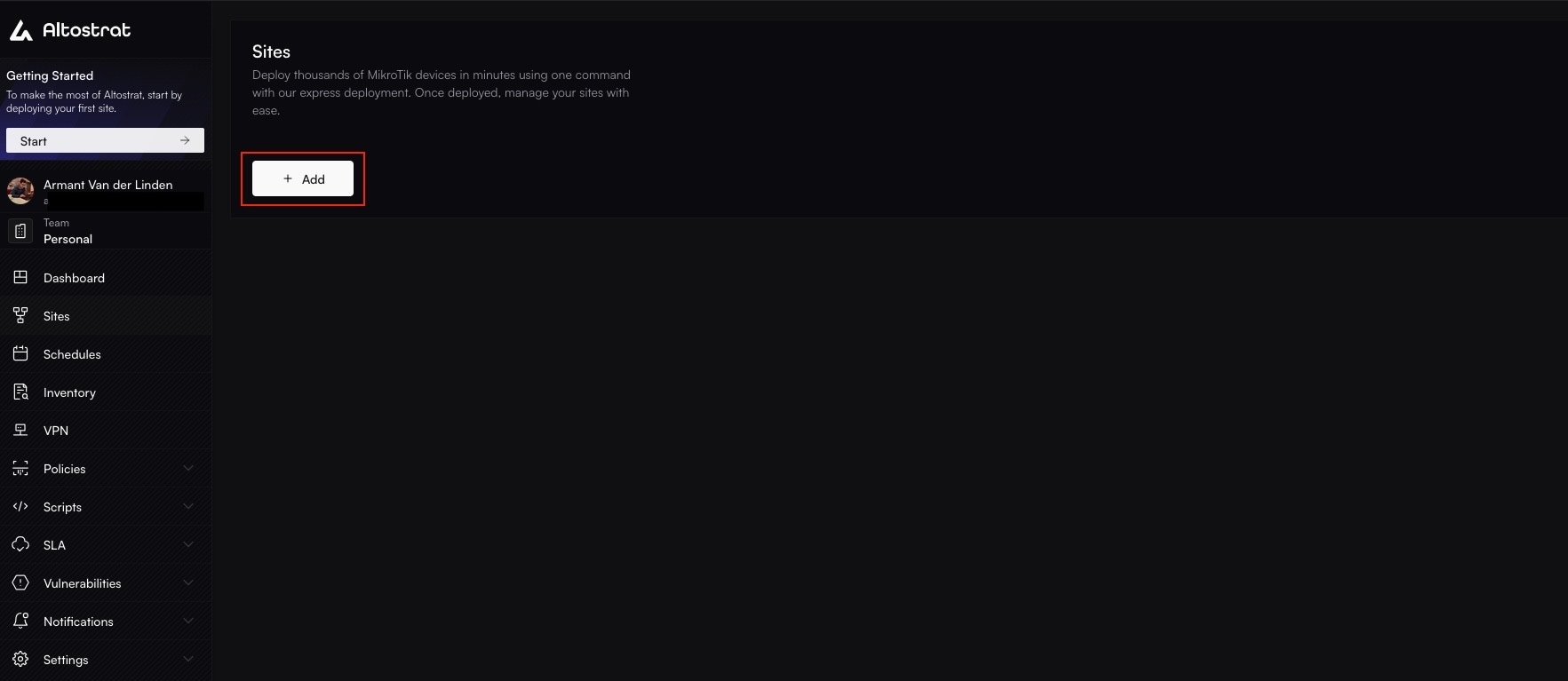
Create the logical site that will represent this router in SDX.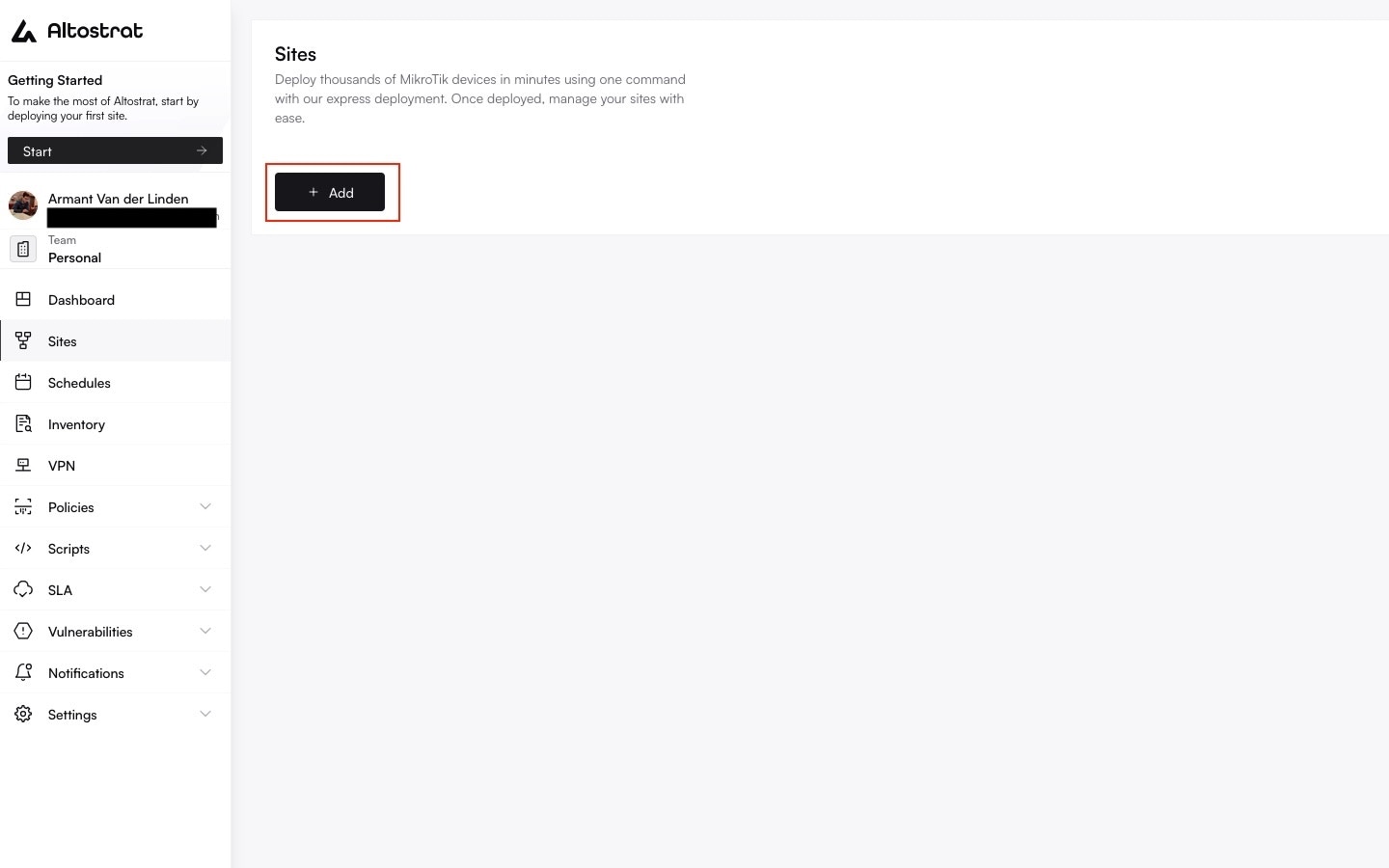
- Open the SDX portal.
- Go to Sites.
- Select Add.
- Enter a clear site name, such as the location or customer-facing service name.
- Save the site.
2
Generate the bootstrap command
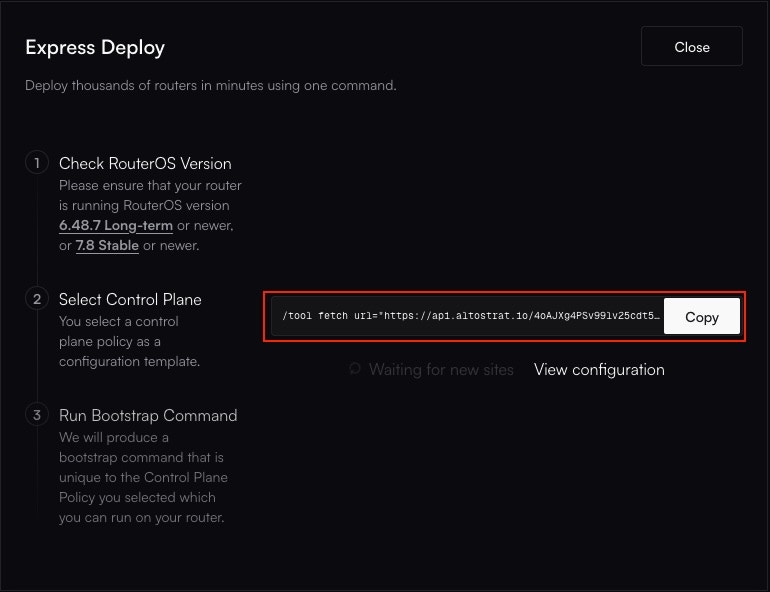
Generate the RouterOS command that binds the physical router to the site.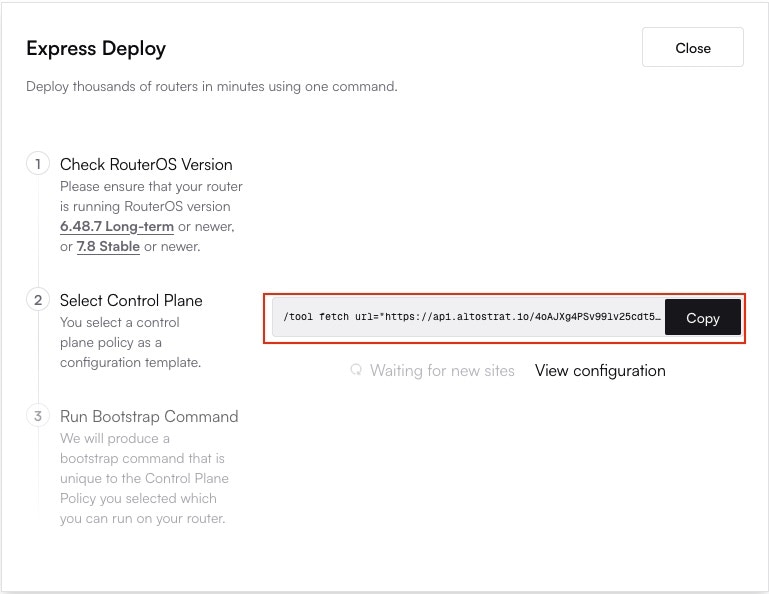
- Open the new site.
- Select Add Router or the onboarding action shown in the site view.
- Select the control plane policy you want SDX to enforce.
- Copy the generated bootstrap command.
3
Run the command on RouterOS
Execute the command on the target router.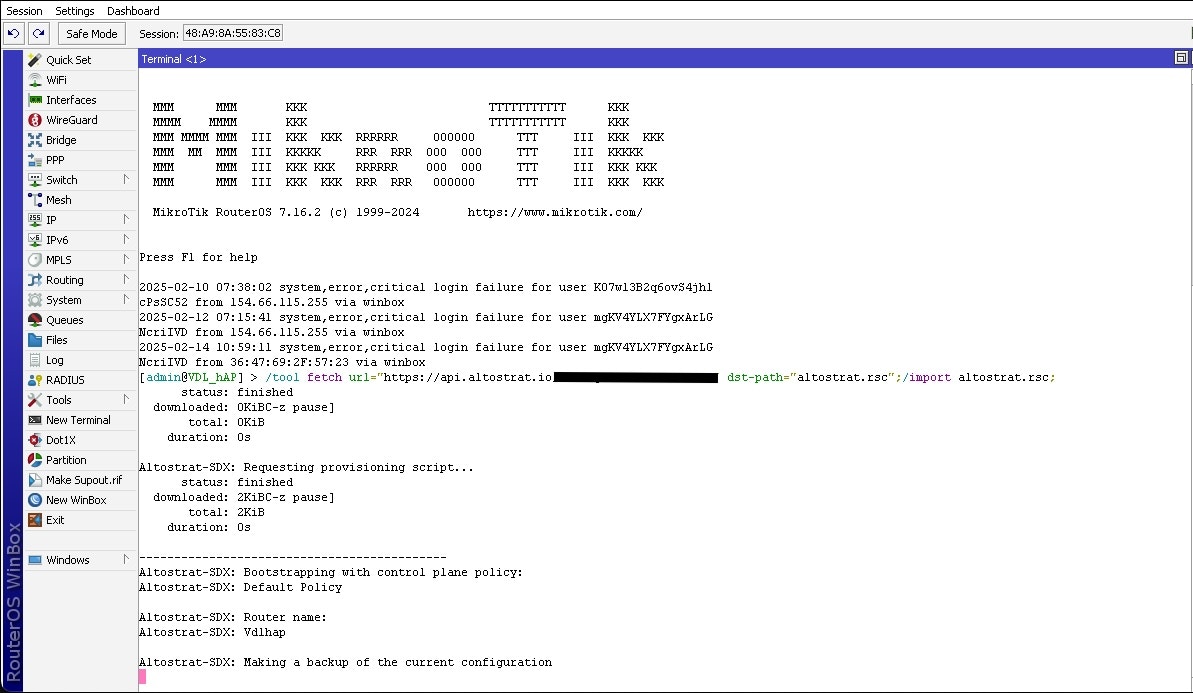
- Open the router terminal through WinBox, SSH, or console.
- Paste the full bootstrap command.
- Press Enter.
- Wait for the command to finish before closing the session.
4
Verify the site is online
Return to the SDX portal and open the site.Confirm that: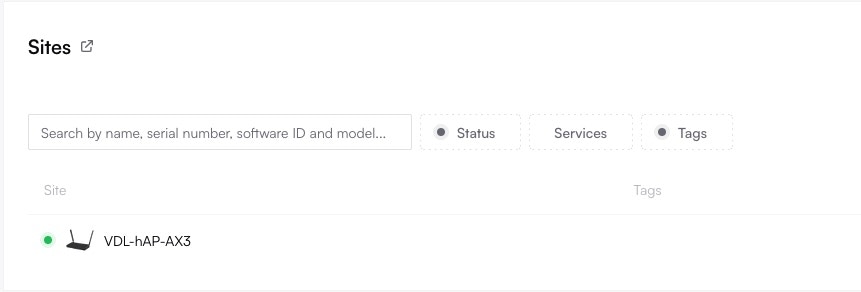
- The site status changes to online.
- Last seen updates after the router checks in.
- Device identity and RouterOS details appear on the site.
- The site appears in the fleet list and dashboard widgets.
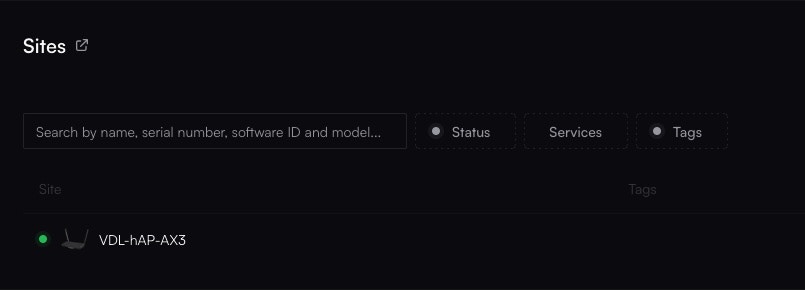
If the site does not come online, start with outbound internet reachability, DNS resolution, the full copied command, and outbound access to the management VPN endpoint. See Troubleshooting for a structured checklist.
Next Steps
After the router is online, do these next:Review the Site
Learn where SDX shows status, inventory, notes, tags, faults, metrics, and site settings.
Harden Management Access
Review the control plane policy applied during onboarding and create a stricter one if needed.
Create a Backup
Request and review a configuration backup before making larger changes.
Plan Tags
Add useful operational metadata before you build reports and workflows around the site.